


Scan tickets at the door
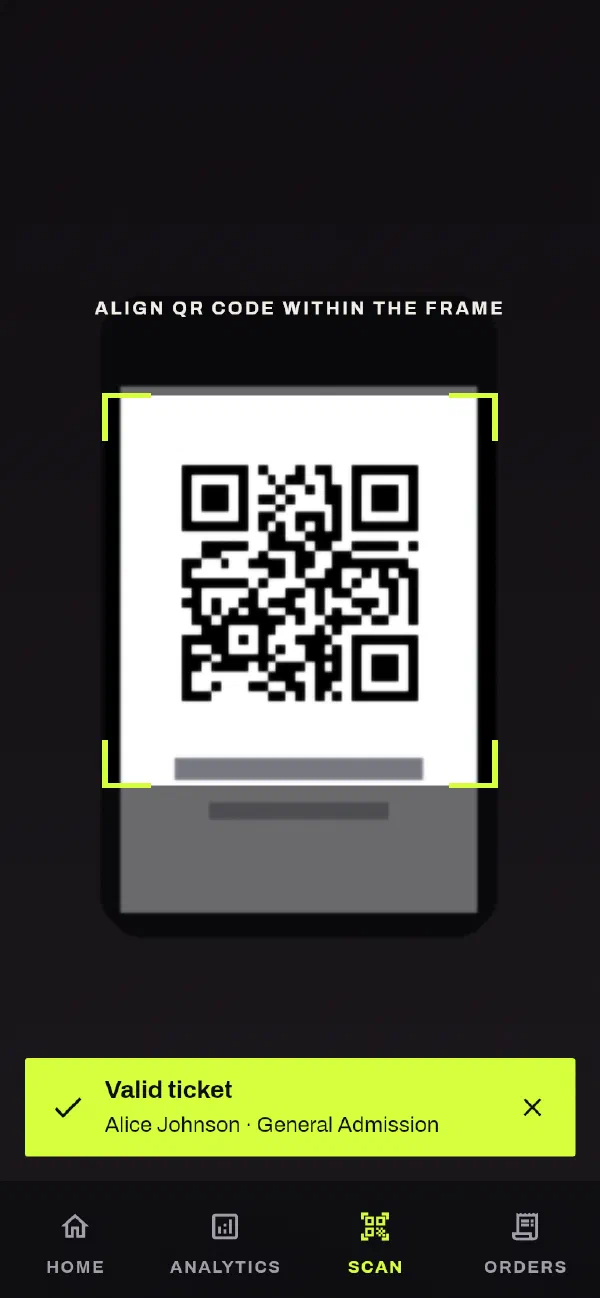
Use any phone as a scanner. Open the Scan tab and point it at the ticket.
Before the doors open
- Make sure that the app shows the event you are scanning for. The app checks tickets against the selected event.
- Make sure that you have mobile data or Wi-Fi. Our servers check each scan, so the scanner needs a connection.
- When the app asks for the camera, allow it.
- Charge your phone. Keep a charger or a spare phone near you.
Scan a ticket
- Open the Scan tab.
- Point the camera at the QR code on the ticket. Buyers can show the code on their phone or on a printed copy.
- Read the result. It shows the ticket type and the buyer's name.
- To close the result, tap it. If you do not tap it, it closes after a few seconds.
Know these rules:
- The scanner accepts only GATE98 ticket QR codes. It ignores all other codes.
- You can check in each ticket one time only.
- While a result shows, the scanner ignores the same code. This stops a camera that stays on a ticket from sending it again and again.
- A refunded ticket is not valid for entry.
During the event
To see the number of people checked in and the number still to arrive, open the Analytics tab. See your numbers.
Keep the line movingBefore people reach you, ask them to open their ticket and turn up their screen brightness. If a person lost their tickets, resend the tickets from their order.
Something not right, or missing?
Tell us at support@gate98.co and we will fix it.